01Meet the 1602A
"1602" means 16 columns × 02 rows of characters. Each character sits
in its own little 5×8 pixel box. The module is driven by a famous chip called the
HD44780, and the Arduino library that talks to it — LiquidCrystal — comes
built into the Arduino software, so there's nothing extra to install.
It has a strip of 16 pins along one edge. That looks like a lot, but most of them just go to power and ground. Only six actually carry data.
Some 1602A screens come with a small I²C backpack soldered on the back (only 4 wires). This guide covers the bare module — the one with the full 16-pin strip and no backpack. If yours has a little chip board on the back, you want the I²C method instead.
02What you need
- A 1602A LCD module (bare, 16 pins)
- An Arduino Uno + USB cable
- 10 male-to-female jumper wires — that's the exact count this build uses
No breadboard and no potentiometer needed. The LCD's pins plug straight into the Arduino's header sockets with the male-to-female jumpers. You'll just want to solder the row of header pins onto the LCD first (most modules ship with the strip loose in the bag).
The usual 1602A wiring needs ~12 wires plus a contrast knob. We trim it to 10 by tying the contrast pin straight to ground (full contrast, no knob) and leaving the backlight unwired. It fits an Uno's pins exactly. Want the knob or the backlight back? See the options at the end.
03Wiring it up
Ten wires, each going straight from a pin on the LCD to a pin on the Arduino — no breadboard, no potentiometer, nothing in between. The colours below are just the four jobs the wires do:
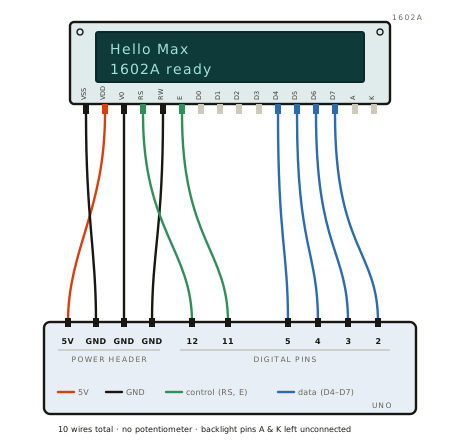
And the same thing as a checklist. Every row is one jumper wire — LCD pin on the left, Arduino pin on the right:
| # | LCD pin | Wire to Arduino |
|---|---|---|
| 1 | VSS | GND |
| 2 | VDD | 5V |
| 3 | V0 | GND contrast = full |
| 4 | RS | pin 12 |
| 5 | RW | GND |
| 6 | E | pin 11 |
| 11 | D4 | pin 5 |
| 12 | D5 | pin 4 |
| 13 | D6 | pin 3 |
| 14 | D7 | pin 2 |
That's all ten. Pins 7–10 (D0–D3) and 15–16 (A, K — the backlight) are simply left unconnected. The Uno has exactly three GND pins and one 5V pin, which is precisely what this uses up.
Normally a potentiometer feeds an adjustable voltage into V0 to set contrast. Tying
V0 straight to GND instead pins contrast at maximum — which is dark and
crisp, and saves you the knob and two extra wires. On most screens it's perfectly readable.
Not sure your wiring is right? Try it in a simulator before touching real hardware. Open a blank
Arduino Uno project on Wokwi,
then replace its diagram.json with
this one and paste in
this sketch. Press play and the virtual
1602A lights up with Hello Max — proof the connection list is correct. (A free Wokwi sign-in
lets you Save it for your own shareable link.)
04Hello, Max
With the wiring done, upload this. The numbers in LiquidCrystal lcd(...) are simply the
Arduino pins for RS, E, and the four data lines — in that order:
#include <LiquidCrystal.h>

// LiquidCrystal(RS, E, D4, D5, D6, D7)
LiquidCrystal lcd(12, 11, 5, 4, 3, 2);

void setup() {
  lcd.begin(16, 2);             // 16 columns, 2 rows
  lcd.print("Hello Max");       // top line
  lcd.setCursor(0, 1);          // column 0, row 1 (the bottom line)
  lcd.print("1602A ready");     // bottom line
}

void loop() {
  // nothing to repeat — the text just stays on screen
}lcd.setCursor(column, row) moves where the next text appears — columns are
0–15, rows are 0 (top) and 1 (bottom).
lcd.print("…") writes text starting from the cursor.
05Custom characters
Here's the fun part. Each character is a grid of 5×8 pixels, and the 1602A lets you
design up to 8 of your own. You draw the shape as eight rows of five pixels — a
1 turns a pixel on, a 0 leaves it off. Writing those rows in binary
(0b…) lets you literally see the picture in the code:
0b00000
0b01010
0b11111
0b11111
0b11111
0b01110
0b00100
0b00000
Store the shape with createChar(), then draw it with lcd.write():
#include <LiquidCrystal.h>
LiquidCrystal lcd(12, 11, 5, 4, 3, 2);

// Our heart, one byte (row) at a time. Each 1 = a lit pixel.
byte heart[8] = {
  0b00000,
  0b01010,
  0b11111,
  0b11111,
  0b11111,
  0b01110,
  0b00100,
  0b00000
};

void setup() {
  lcd.begin(16, 2);
  lcd.createChar(0, heart);   // save the shape in slot 0 (slots 0–7)
  lcd.setCursor(0, 0);
  lcd.print("I ");
  lcd.write(byte(0));          // draw custom character #0
  lcd.print(" 3D printing");
}

void loop() {}
Change the eight numbers and you change the picture. Try a smiley, a tiny printer, the first letter of
your name — anything that fits in the 5×8 grid. You can keep up to eight custom shapes at once
(slots 0 through 7).
06If the screen is blank
| What you see | Usually means | Try this |
|---|---|---|
| Nothing at all | No power, or V0 not grounded | Check VDD→5V, VSS→GND, and V0→GND |
| A row of solid blocks | Powered, but no data | Re-seat RS, E and the four data wires |
| Garbled / wrong characters | A data wire is loose or swapped | Confirm D4, D5, D6, D7 → pins 5, 4, 3, 2 |
| Readable but a bit dim | No backlight — that's expected here | Read it in good light, or wire the backlight (below) |
| Totally dark blue screen | Blue-type LCDs really need backlight | Wire the backlight, or use a green/reflective one |
A "dead" 1602A is almost always a power or ground wire that isn't fully seated. Push every jumper firmly home — especially the three going to GND and the one to 5V — before changing anything else.
07More wiring options
The 10-wire build trades a couple of features for simplicity. If you want them back, here's the cost in extra wires and effort:
| You want… | Do this | Wires |
|---|---|---|
| Adjustable contrast | Add a 10 kΩ pot: middle leg → V0, outer legs → 5V and GND (instead of V0→GND) | +2 |
| The backlight on | Solder two small bridges on the LCD header to share the GND and 5V pins, then wire A→5V and K→GND | +2* |
| The fewest wires | Use an I²C backpack board (SDA, SCL, VCC, GND) with the LiquidCrystal_I2C library | just 4 |
* With solder bridges sharing the power pins, the backlight adds wires without running the Uno out of GND/5V sockets. The I²C route needs a different library and a little adapter board, but it's the tidiest of all — only four wires.